In Greentree version 2024.1, we introduced the modern and secure XLAM files for FREE add-ins. To get he benefit of XLAM, you need to manually replace the old XLA files.
1. Disable your current XLA FREE add-ins
- In Microsoft Excel, open the File menu.
- At the bottom left, click Options.
- In the Excel Options window, go to the Add-ins tab.
- Click Go.
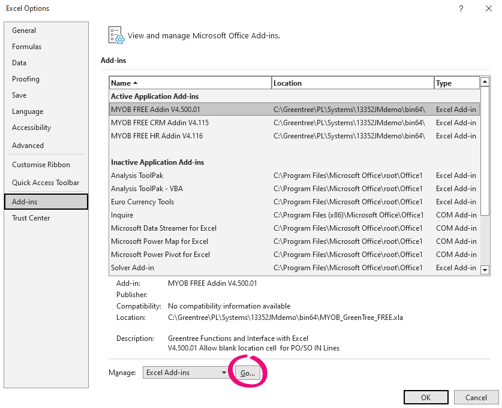
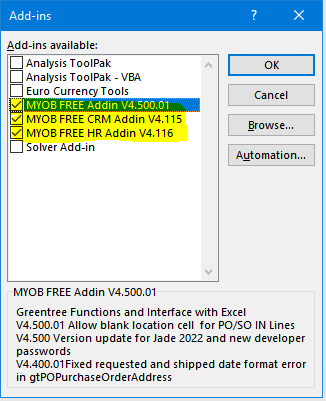
- In the Add-ins window, deselect the three MYOB add-ins and click OK.
- Back on the Add-ins tab on the Excel Options window, make sure the old XLA files are deleted:
- Select a FREE add-in from the list. It displays the path to that XLA file, which makes finding them much easier.
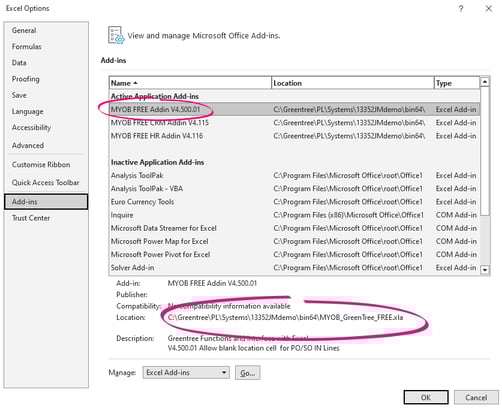
- Click Go.
- In the message window about deleting the add-in from the list, click Yes.

- Select a FREE add-in from the list. It displays the path to that XLA file, which makes finding them much easier.
2. Add the new XLAM FREE add-ins
- The process for FREE add-ins hasn’t changed.
- In Microsoft Excel, open the File menu.
- At the bottom left, click Options.
- In the Excel Options window, go to the Add-ins tab.
- Click Go.
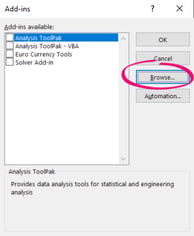
- In the Add-ins window, click Browse and select the add-ins you want.
3. Correct any spreadsheets that use FREE
- Sometimes Microsoft Excel saves the XLA path and filename against a cell that uses one of the Greentree FREE functions.
- Open a spreadsheet. A message window about links to external sources displays.

- In the message window, click Update. An Unable to Refresh banner appears on the spreadsheet.

- In the banner, click Manage Workbook Links.
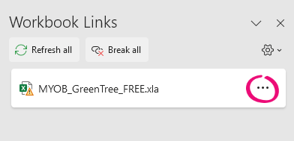
- In the Workbook Links panel, click the three dots icon and choose Change Source.
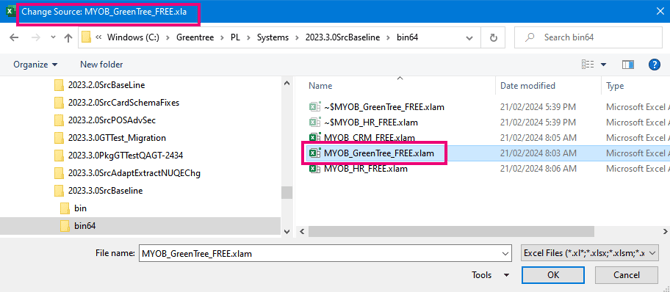
- In the Change Source window, click Browse. The name of the add-in you’re replacing is at the top of the file browser window, e.g., Change Source: MYOB_GreenTree_FREE.xla. Choose the XLAM file that corresponds to the XLA file you’re replacing, e.g., MYOB_GreenTree_FREE.xlam.