By regularly removing unneeded tasks from the Print & Task Queue, you can keep critical tasks (like emails, payroll, backups) running reliably.
For example, if some tasks have had the Waiting status for more than a week, then you should delete them from the queue.
To keep the user interface uncluttered, you can also use a system script to easily remove all tasks that either completed or failed with an error.
Before getting started
- You need to be a queue administrator, with the Is queue administrator checkbox selected on your User Preferences form (File > Preferences).
- You need to have access to the Processing System Status and Setup form.
1. Delete unneeded tasks from the queue
- Go to System > Utilities > Processing System Status and Setup.
- Filter the jobs:
- Select All queued jobs.
- Set Status to All.
- Set the After date to as early a date as possible, like 01/01/2000, to show all jobs.
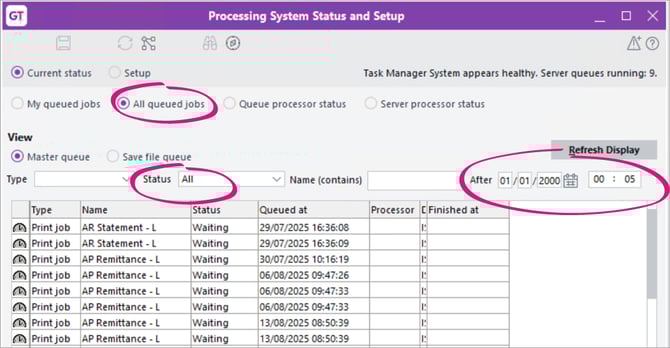
- Check the Status column for jobs you might want to delete, e.g. jobs stuck on the Waiting or Held statuses.
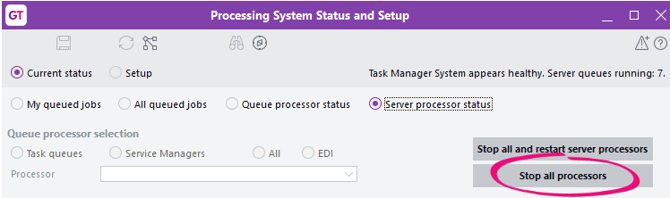
- Select Server processor status.
- Click Stop all processors. This lets you delete items any job.
- Go back to All queued jobs, then right-click on a job (or multiple jobs) and choose Delete.
2. Run a script to clear completed and failed tasks from the queue
- Go to Process > Task Scheduler.
- Choose the Clear print and task queues task.
- Select if you want to run the task once or schedule it to run regularly (e.g. once a week on weekends, when there's not much activity in Greentree).
- Select the Run now checkbox.
- Select all the Purge checkboxes, but do not select the Compact Database file checkbox.
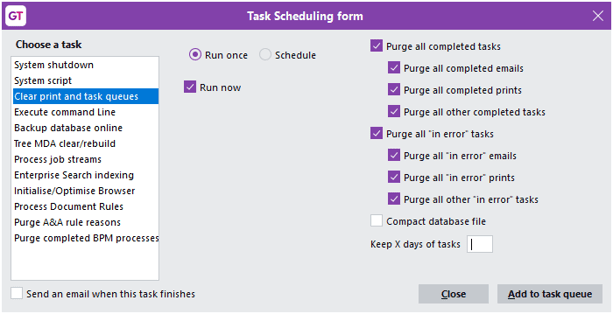
- Click Add to task queue.
3. Restart the task queue
- Go back to the Processing System Status and Setup form.
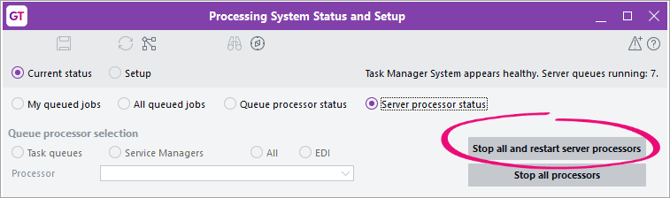
- Select Server process status.
- Click Stop all and restart server processors.