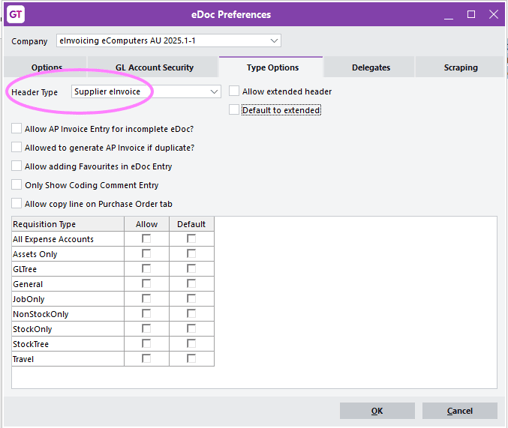
This page explains all the different parts of MYOB Greentree you need to set up to use eDocs Supplier eInvoicing.
After setting up eDoc Supplier eInvoicing, you’re ready to start working with eInvoices.
Scraping Rule
-
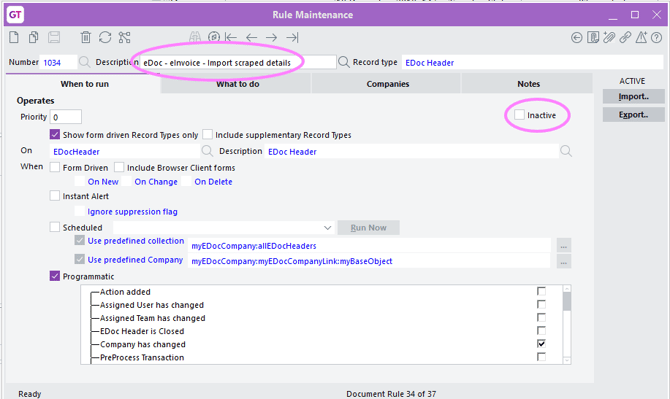
Go to the Rule Maintenance form.
-
Import the Rule “eDoc - eInvoice - Import scraped details” and set it as Active.
-
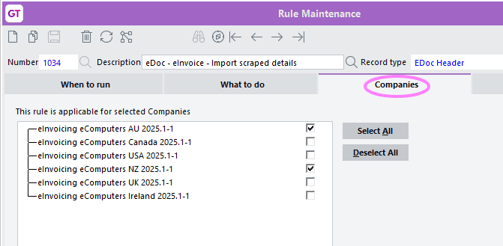
On the Companies tab, select the required companies.
Status Maintenance
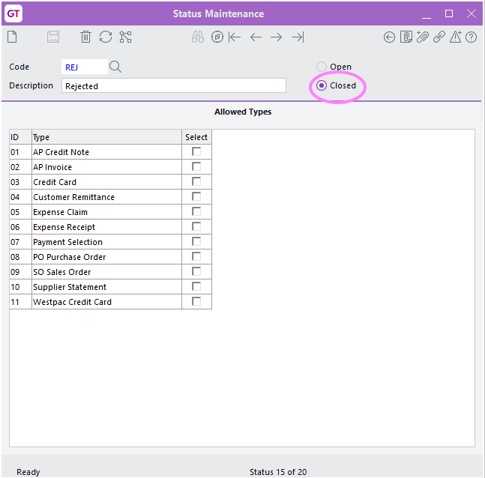
Create a new status for rejected Supplier eInvoices by assigning an appropriate Code and Description. Set this new status as a Closed status.
Type Maintenance
You need to create a new Type for Supplier eInvoices.
-
Go to the Type Maintenance form.
-
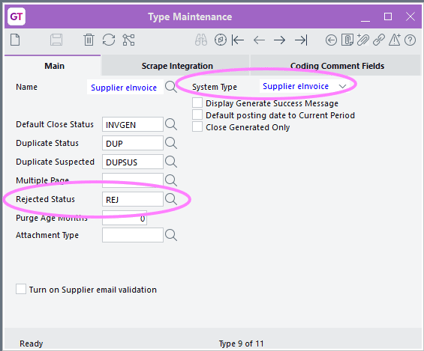
On the Main tab, set the System Type to Supplier eInvoice.
-
Complete the settings that are relevant for your system.
-
Select the Rejected Status you created on the Status Maintenance form.
-
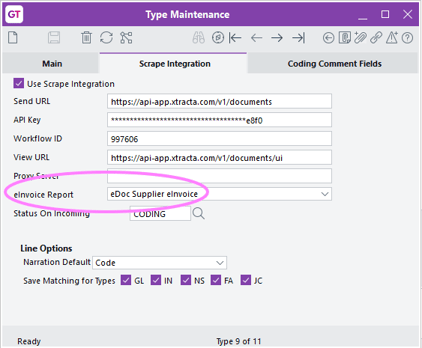
On the Scrape Integration tab, fill in the required fields as you would for other types.
-
In the eInvoice Report field, select “eDoc Supplier eInvoice”.
-
After creating the Supplier eInvoice Type, go back to the Status Maintenance form.
-
Update each status selected on the Main and Scrape Integration tabs for the Supplier eInvoice Type.
For example, for the Rejected status, on the Allowed Types tab select “Supplier eInvoice”.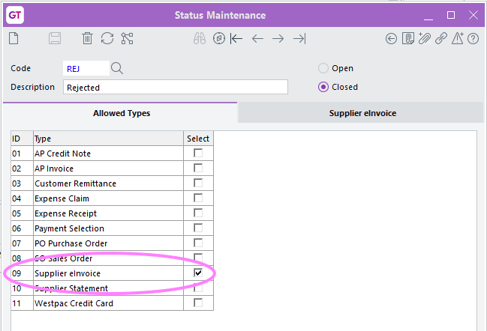
-
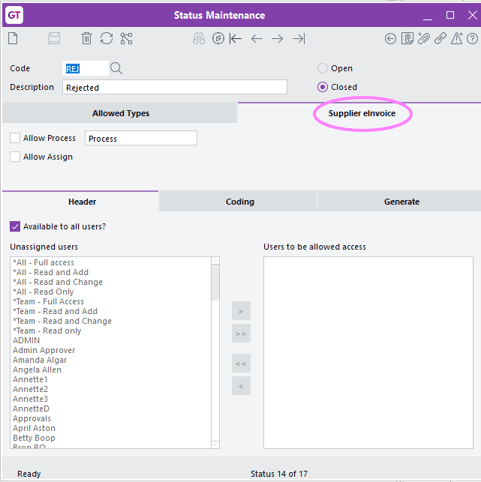
Check and update the settings as required on the Supplier eInvoice tab.
Company Maintenance
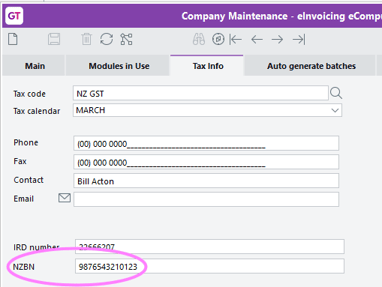
The system uses the NZBN or ABN entered on the Company Maintenance screen to identify which company to import the Supplier eInvoice into.
For New Zealand companies, enter an NZBN field on the Tax Info tab of the Company Maintenance form. It must contain 13 characters.
User Maintenance
eDocs Supplier eInvoices follow the settings on the eDoc Preferences window, as with other transaction types. The settings are the same as those used for the AP Invoice transaction type.
Update the user preferences for any users who will process Supplier eInvoices.