
The steps below outline how to move stock out of bin-managed locations so you can turn off bin management, and then (if required) move stock back to non-bin locations.
Where possible, complete this when no other users are processing inventory transactions.
1. Confirm current bin balances
- Run the Suspense Bin Balances report and make sure you understand any balances that need to be cleared or moved.
- Use the Inventory balance by location enquiry:
- Expand the stock lines.
- Output the results to Excel to keep a snapshot of current balances.
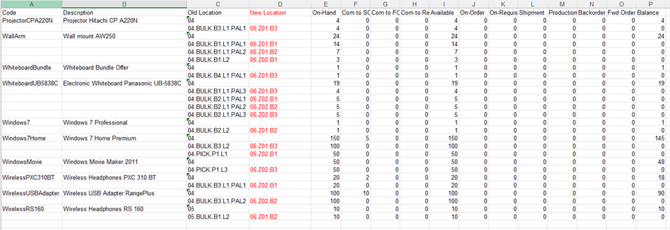
2. Create a temporary location for bin stock
Create a new location to move stock from your original bin‑managed warehouse.
In my demo, I created Location 06.
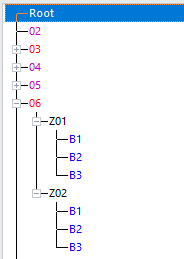
Alternatively, you can create/use a single holding location (for example, 02) and move all bin movements to this location. After you have completed the bin deactivation steps, you can do another IN Multiple Adjustment to move stock back from this holding location to the original locations (which will then be non‑bin locations).
3. Move stock from bin locations to the new location
- Change all SO Backordered line locations to new locations
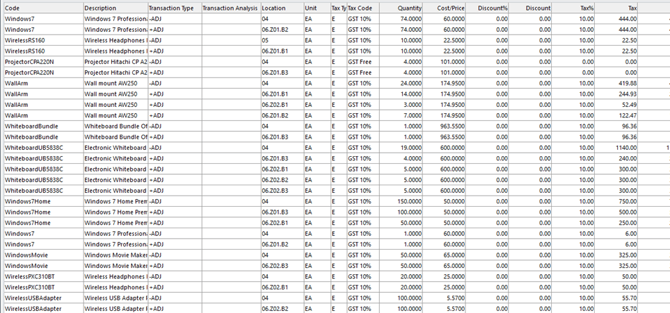
- Open IN Multiple Adjustment Entry.
- For each item in the bin‑managed location (for example, Location 04):
- Enter a -ADJ type to clear the stock from Bin (select the relevant bin via Line-Item sheet)
- Enter a matching +ADJ type to put the same quantity into the new location (for example, Location 06).
4. Clear any transitional areas in use
For each of the following areas, clear the field:
- Receiving area – highlight the field, press Backspace to clear it, then press Enter.
- Packing area – highlight the field, press Backspace, then press Enter.
- Cross docking area – highlight the field, press Backspace, then press Enter.
6. Remove outstanding bin tasks
Delete all outstanding Bin Put Away and Replenishment transactions so there are no open bin‑related tasks remaining.
7. Turn off bin flags on locations
Once all stock has been moved:
- De‑select the Bin setting on each location that is currently bin‑managed.
- In my demo, this was done against locations 04 and 05, covering:
- RCV
- PICK, P1‑L1 to L3, P2‑L1 to L3, P3‑L1 to L3
- PACK
- GATED, G1 and G2
- BULK, B1–B4–L1 PAL1 to PAL3, L2
- In your system, review and update all locations that are using bins and remove the Bin setting as required.
8. Turn off bin management settings
- De‑select Multi-binning for the relevant locations (for example, 04 and 05).
- In IN Module Control/Options, de‑select Use warehouse bin management.
10. (If required) Rebuild inventory balances
If needed, there is a standard script to rebuild Inventory Balances.