
Your responsibilities for staying compliant
While the ATO has given advice they will be focusing enforcement on employers who don't do the right thing, if you don't pay super guarantee in full, on time, and to the right fund, you may be liable for penalties called super guarantee charges (SGC). For more information, see The Super Guarantee Charge on the ATO website
Here are some steps you can take to help avoid these charges:
-
Before July 1, review your pay and deduction transaction types and make sure they are set to Include in Qualifying Earnings, and are included in your Superannuation accumulator as per ATO guidelines.
-
Make sure you make all super guarantee payments within 7 business days after each regular pay run.
Install our debug package or upgrade to 2026.1
To make sure MYOB Greentree supports Payday Super changes, we've made a debug package available. It can only be applied to systems on version 2025.3.0.
When version 2026.1 is released, it will also include Payday Super changes.
See the release notes for what's new.
Set up qualifying earnings
To correctly report year-to-date qualifying earnings in STP files, you need to set up qualifying earnings for pay and deduction transaction types any time before 1 July 2026.
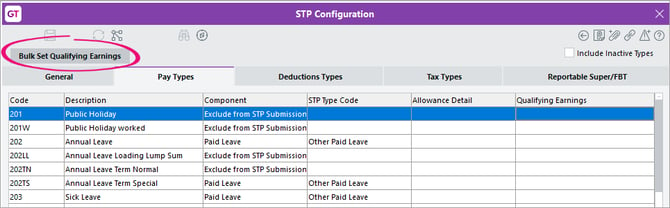
- Go to HR > System > Payroll > STP Configuration.
- Click the new Bulk Update Qualifying Earnings button.
The Bulk Update Qualifying Earnings window opens.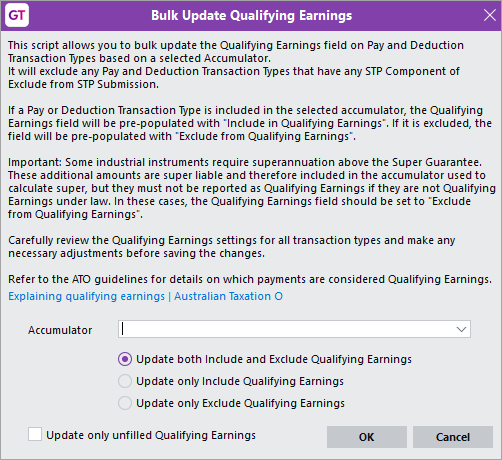
- Select an Accumulator. The transaction types in the accumulator determine what will be included or excluded from qualifying earnings.
- Select an option:
- Set both Include and Exclude – Any pay and deduction transaction types in the accumulator are set as qualifying earnings. Any transaction types not included in the accumulator are excluded from qualifying earnings.
- Set only Include – Any pay and deduction transaction types included in the accumulator are set as qualifying earnings.
- Set only Exclude – Any pay and deduction transaction types not included in the accumulator are excluded from qualifying earnings.
- Click OK to apply the options you selected.
- On the STP Configuration form, carefully review the changes in the new Qualifying Earnings column. If the bulk update got anything wrong, you can correct it in the column.
Include qualifying earnings in your superannuation accumulator
The superannuation accumulator calculates the superannuation liability amount.
From 1 July 2026, some transaction types that are not ordinary time earnings (e.g. commissions) will need to be included in qualifying earnings. For more examples, see the ATO website.
That means that, after completing all pays in June and before processing any pays with a payment date on or after 1 July 2026, you need to update these transaction types to be included in qualifying earnings and in your superannuation accumulator.
- Go to HR > System > Payroll > Accumulator Maintenance.
- In the Name field, select your superannuation accumulator.
- In the table, select the Include checkbox for all pay transaction types that are included in qualifying earnings.
Not sure which pay transaction types are qualifying earnings? Check the Qualifying Earnings column on the STP Configuration form.
Note: There are rare circumstances where you might need to include a transaction type in the superannuation accumulator but exclude it from qualifying earnings (e.g. when an employee's contract includes industrial instrument). For more details, see the ATO website.
Move from the ATO's super clearing house
The ATO's Small Business Superannuation Clearing House (SBSCH) will close from 1 July 2026 and you won't have access after this date. More about this closure.
Update the default expected SGC payment date settings
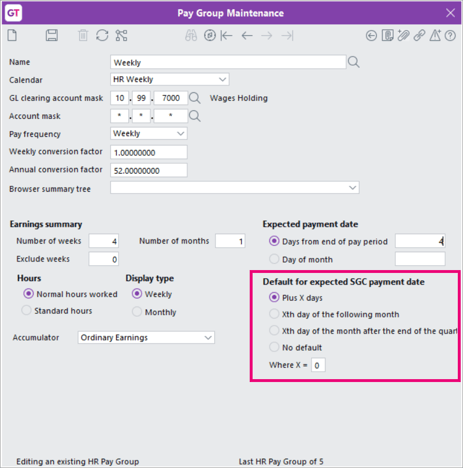
After completing all pays in June, and before processing any pays with a payment date on or after 1 July 2026, you must update the default expected SGC payment date to be the same as the expected payment date. This setting determines the SGC expected payment date displayed on Pay Entry and printed on employee payslips.
- Go to HR > System > Payroll > Pay Group Maintenance.
- In the Default for expected SGC payment date section:
- Select Plus X Days.
- Set the Where X = field to 0.
- Save your changes.