
Here’s a summary of how the system allocates bins when goods are received into stock via a Purchase Order Receipt or an AP Invoice, and how bin suspense works.
Transitional area setups
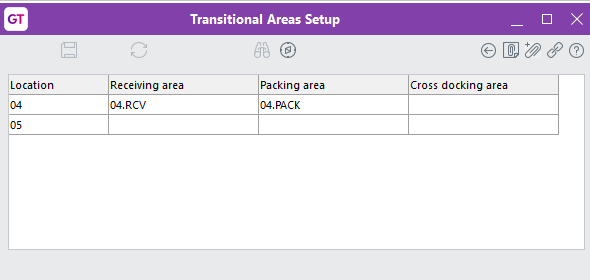
- If a location has a Transitional Area Setup configured, all goods received into that location will be allocated to the bin defined in that setup.
Bin selection order when there is no transitional area
When goods are received and there is no transitional area, the system allocates bins in this order:
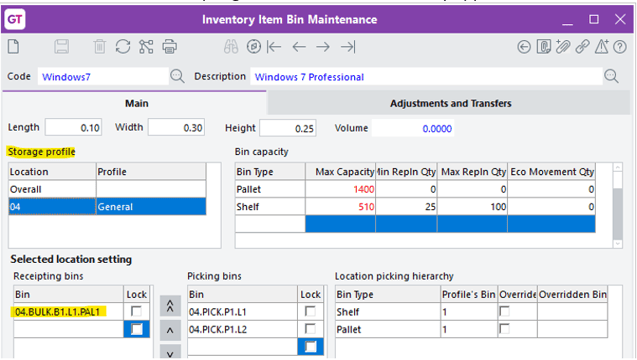
- Receipting bins:
- Firstly, the system looks at the specific receipting bins assigned for the item in IN Item Bin Maintenance.
- It allocates into those receipting bins in the exact order they appear in that table.
- Partially filled, non‑mixed bins of the primary bin type:
- Next, it looks for partially filled bins that:
- Are of the primary bin type in the location’s storage profile, and
- Are non-mixed (they only contain that item).
- It checks these bins in bin location order, or in reverse bin location order if the reverse flag is set for that bin type in the Storage Profile.
- Next, it looks for partially filled bins that:
- Closest empty bin of the primary bin type:
- If there are no suitable partially filled bins, the system then looks for the closest empty bin of the primary bin type.
- Closest is calculated using the number of segments to use for searching receiving bins from the Location Print Order setup.
- The more segments used, the more precise the distance calculation; in most cases this is set to use all location segments.
- First mixed bin of the primary bin type
- If it still hasn’t found a bin, the system receipts into the first mixed bin of the primary bin type.
- Next closest mixed bin of the primary bin type
- If more capacity is needed, it receives into the next closest mixed bin of the primary bin type, again using the closest bin logic from step 3.
- Secondary and further bin types
- If the primary bin type options are exhausted, steps 2–5 are repeated for the storage profile’s secondary bin type, then the third, and so on.
When bin suspense is used:
Bin suspense is controlled by the UT Preference option Enable bin suspense on receipting
- If Enable bin suspense on receipting = true
- After applying all of the above logic, if the system cannot find enough bins to receive the full quanti,ty any shortfall (line quantity minus allocated quantity) is received into bin suspense.
- If Enable bin suspense on receipting = false
- You will not be able to complete the transaction if there is not enough bin capacity
- Bin issues must be resolved before the transaction can be posted.
What bin suspense means:
- Bin suspense is a dummy bin within the stocking location, used only to balance bin quantities.
- The total quantity at the stocking location remains correct – suspense only affects how that quantity is distributed across bins.
- In a well‑configured warehouse, with storage profiles and bin rules correctly set up, suspense should only be used for exceptions, such as:
- Gaps in WBM (Warehouse Bin Management) setup so the system cannot determine valid bins for the item.
- All bins the item is allowed to be received into are already full or become full when partially allocating the line.
- Bins with capacity have been made inactive (for example, due to a product recall, quarantine or re‑labelling).