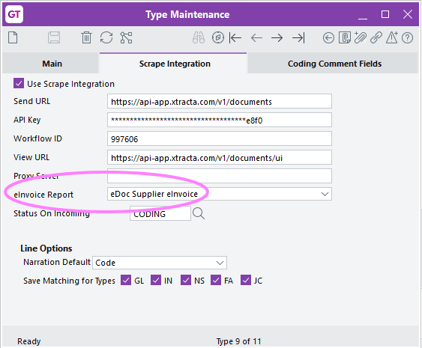
After setting up eDoc Supplier eInvoicing, you’re ready to start working with eInvoices by creating, customising and rejecting them.
Creating an eDoc Supplier eInvoice
You can import transactions into MYOB Greentree by either clicking the Refresh icon or running the “Import New Documents” system script.
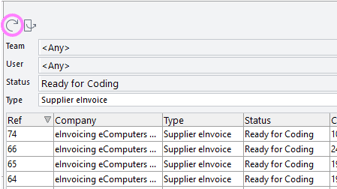
When a Supplier eInvoice transaction is imported into Greentree, the system will attempt to match the NZBN or ABN number from the transaction with those saved in the company’s masterfile records. If a single match is found, Greentree will automatically assign the company to the transaction. If no match is found, or if there are multiple companies with the same NZBN or ABN, the company field will be left blank for the user to assign manually.
The process for updating, processing, assigning, and creating an AP Invoice is the same as for an eDoc AP Invoice.
Rejecting an eInvoice
You cannot delete Supplier eInvoice transactions. Instead, you have to reject invalid Supplier eInvoices – e.g. if it’s addressed to the wrong customer or contains an incorrect amount.
-
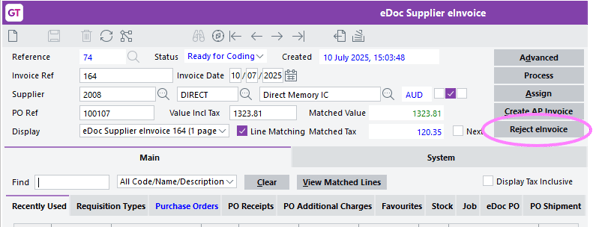
On the eDoc Supplier eInvoice form, click Reject eInvoice.
-
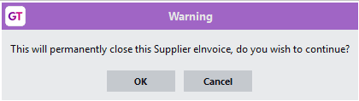
Read the warning. If you want to permanently close the eInvoice, click OK.
-
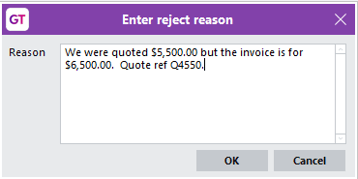
In the Enter reject reason window, describe why the transaction is invalid and click OK.
The status of the transaction changes to the Rejected status on the Supplier eInvoice Type. The “Reject eInvoice” button changes into the Rejected Reason button, which you can click to review why the eInvoice was rejected.
Re-running a PDF invoice after all fields are assigned
When a Supplier eInvoice is imported into Greentree, a PDF invoice is also generated on the eDoc Supplier eInvoice form. If the company (and the supplier) cannot be identified when the eInvoice is imported, these fields will appear blank on the PDF invoice.
If required, once these fields have been assigned by the user, you can re-run the eInvoice report and save it as a new PDF attachment.
-
Go to Reports > Other Reports > eDoc Supplier eInvoice.
-
Run the report for the required Supplier eInvoice, using the eDoc Reference number.
-
Save the report as a PDF.
-
Open the eDoc Supplier eInvoice form and click the Attachments icon.
-
Delete the existing PDF attachment named “eDoc AP eInvoice”.
-
Attach the newly generated PDF. Ensure it is named “eDoc AP eInvoice” and set it as the primary attachment.
Customising the eInvoice report
The eDoc Supplier eInvoice report is a report writer report, which you can customise to meet your requirements. If you save a customised version of the report with a new name, remember to update the eInvoice Report field on the eDoc Type Maintenance form for the Supplier eInvoice type.