
When entering customer data, especially address information, your users might incorrectly capitalise words, e.g. not capitalising at all or using all caps. You can create an AI prompt that automatically corrects the capitalisation of customer addresses, names, etc.
- Go to the LLM Prompts form (ML202000).
- In the summary area, enter some basic details about the prompt you're creating:
- Prompt ID and Prompt Name – Enter a descriptive name for the prompt. This is how you'll find it again later on the LLM Prompts form. In this example, let's make the ID CUSTOMER-ADDRESS and the name Customer Address Check.
- LLM Connection – Which large-language model the prompt uses. The default connection is a model managed by MYOB. You can also set up more connections on the LLM Connections form (ML201000).
- Source Form – The form where the action button will be added. In this example, we'll add an action to the Customers form (AR.30.30.00).
- Button Name – How the action button is labelled on the source form. In this example, let's label the button Check Address.

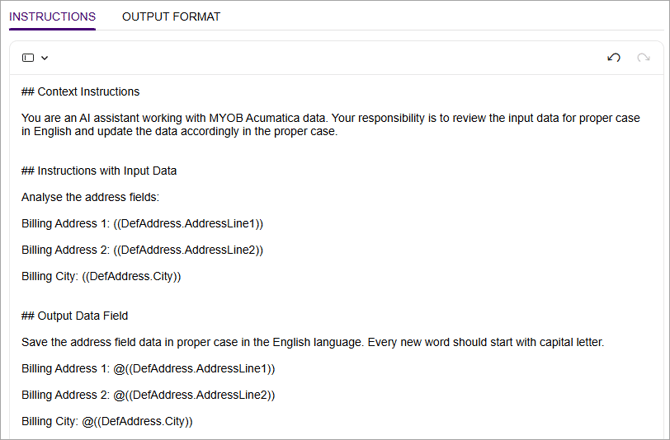
- On the Instructions tab, describe the specifics of what you want the AI agent to do when a user clicks the prompt button. This tab is made up of three sections: ## Context Instructions, ## Instructions with Input Data and ## Output Data Field. Make sure you leave these section headings in when you add your instructions. The table below provides example instructions you can copy and paste.
Instructions tab section Example instructions In the ## Context Instructions section, tell the AI agent how to act. ## Context Instructions
You are an AI assistant working with MYOB Acumatica data. Your responsibility is to review the input data for proper case in English and update the data accordingly in the proper case.
In the ## Instructions with Input Data section, describe what you want the AI agent to do with your customer address fields. ## Instructions with Input Data
Analyse the address fields:
Billing Address 1: ((DefAddress.AddressLine1))
Billing Address 2: ((DefAddress.AddressLine2))
Billing City: ((DefAddress.City))
In the ## Output Data Field, choose which fields you want the AI to correct the capitalisation for.
For this example, the output data fields should be the same as the input data fields.
## Output Data Field
Save the address field data in proper case in the English language. Every new word should start with capital letter.
Billing Address 1: @((DefAddress.AddressLine1))
Billing Address 2: @((DefAddress.AddressLine2))
Billing City: @((DefAddress.City))
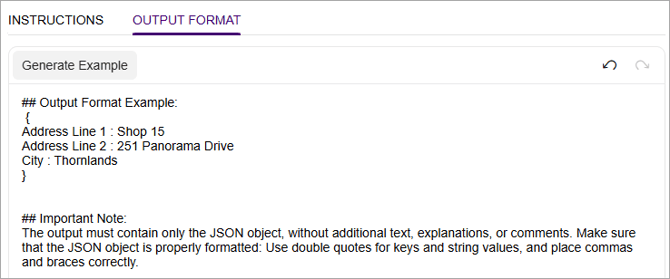
- On the Output Format tab, enter an example of what the AI agent should write when a user clicks the prompt button. Because the example needs to be formatted in a specific way, we recommend clicking Generate Example and then fine-tuning it.
For this prompt, you can copy and paste the following output format:
{
Address Line 1 : Shop 15
Address Line 2 : 251 Panorama Drive
City : Thornlands
}
- After entering your instructions and output format, save your changes.
- In the Prompt Testing section, select an example record to run the prompt on and click Test Prompt.
- If you're happy with the results in the Preview tab, select the Active checkbox in the summary area. This adds the prompt button to the source form you selected in step 2. Your users can now take advantage of the prompt to streamline their workflow.