
If you can't find what you need in the knowledge base, create a support request with our MYOB Acumatica support team.
Before you start, make sure you're an authorised user. For more information, see Changing authorised users for MYOB Acumatica support.
- Open the Support Request form and sign in using your username and password.
If you don't have a username or password, talk to your company's MYOB Acumatica administrator. - Select Customer in the Are you an MYOB Partner or Customer field.
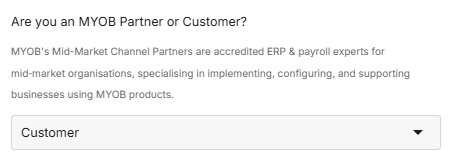
More options appear. - Enter an email address and subject, then select the product you want support for.
- Select an option for What can we help you with?. This makes sure your query goes to the right people.
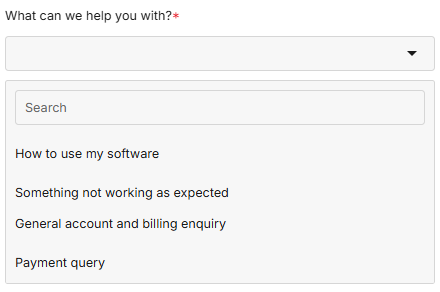
- How to use my software — Practical help with business tasks or learning the software.
- Something not working as expected — Troubleshooting errors, service outages, incorrect data.
- Book a consulting service — Custom reports, extensions and dashboards, and complex configuration and process designs.
- General account and billing query — Get information about and make changes to your account, contract and contacts.
- Payment query — Updating payment details, questions about incorrect or missed payments.
- Fill in the remaining fields and click Next. Accurate information helps us get your request to the right person as quickly as possible.
The Request details screen opens.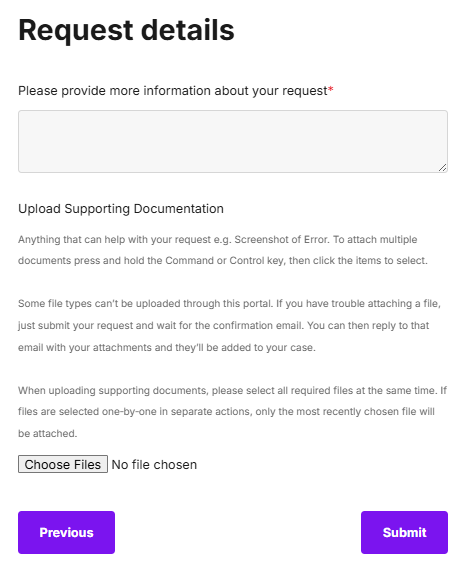
- Fill in as much information as you can about your request:
- Make sure you include the name of the affected user and tenant.
- Include the steps you followed, what you expected to happen, and what actually happened.
- To help us prioritise your query, let us know how the issue is impacting your business activities, and how many users are affected.
- Click Choose Files to add screenshots, videos and other supporting information to help us work out what's wrong.
- Once you've completed all the fields, click Submit.
Once your support request has been created, the team will get in touch with you. Go to Support Requests to check on the progress.
Add a note when closing your ticket
When you close your support tickets, add a note to let us know why. This way we can track if your issue has been fixed or if there's another reason you've closed it.