
If automation schedules are set up incorrectly, they can cause errors and hinder performance. This tends to affect the Send/Receive Emails form (SM507010).
Finding problematic automation schedules
There are two forms that let you check which automation schedules might have errors: Automation Schedule History (SM205035) and System Monitor (SM201530).
For example, schedules might continuously error, trigger too frequently (e.g. every few minutes), or take longer to process than their scheduled interval.
Checking the Automation Schedule History form
- Select a schedule in the Schedule field.
- Check if there's a red cross in the Status column, which means that the schedule has errors.
- View the errors by clicking the number in the Total Records column to open the Processing Results window, then go to the Errors tab.
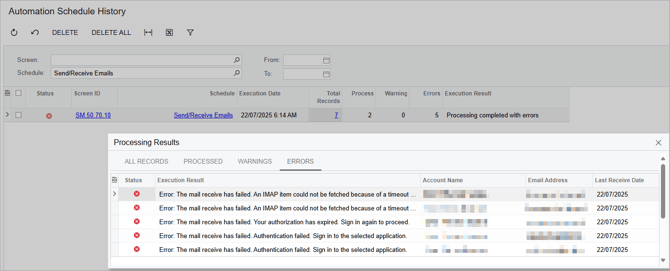
Most email errors start with "The mail receive has failed", followed by what caused the error.
Checking the System Monitor form
Go to the System Events tab and set the filters:
- In the Source field, deselect All and select Scheduler.
- Set the Level field to Error.
- Set the date range in the From and To fields.
Review the results in the table. Common email errors include:
-
Automation Schedule has failed with an exception
-
An error occurred during the receiving of email messages
- The mail send has failed. Error: The transaction has been silently rolled back before a database update operation
Check the Tenant column to confirm which tenant the error relates to, as automation schedules may be tenant specific

Resolving automation schedule errors
You can use the error information you got from the Automation Schedule History and System Monitor forms to fix how your automation schedules are set up. For example, correcting email setups or invalid email addresses.
If you no longer need an automation schedule that causes errors, you can simply delete it or deactivate it on the Automation Schedules form (SM205020).
If your schedules stuck in a loop, you can improve performance by having enough time between schedules.