
Before you can start taking advantage of AI Automation prompts (previously called AI Studio), you need to set up the MYOB-managed large-language model (LLM) connection.
Key points
- These instructions are for version 2025.2. In version 2026.1, the LLM is available immediately without any setup required.
- You need administrator access to set up the MYOB-managed LLM.
- Before getting started, turn on MYOB Acumatica's AI features.
- After setting up AI Automation, you'll be ready to create your own prompts. For example prompts with detailed instructions, see AI Studio prompts.
1. Run cloud diagnostics
Running cloud diagnostics makes sure that your site can connect to the AI Automation cloud service.
- Go to the Cloud Service Diagnostics form (SM205090).
- Make sure the Enabled checkbox is selected for the AI Automation: Cloud ML Proxy row. If it's not, you need to first turn on AI Automation features.
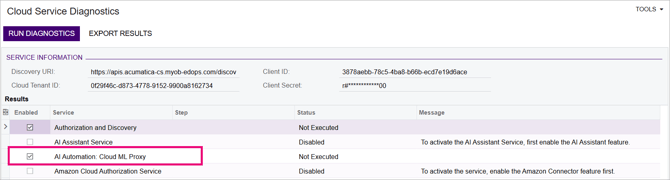
- On the form toolbar, click Run Diagnostics. MYOB Acumatica tests each enabled service and displays the results in the status column.
- Check the AI Automation: Cloud ML Proxy row:
- If the Status column shows Success and the Step column shows Ping ai-studio, you're ready to set up your LLM connection.
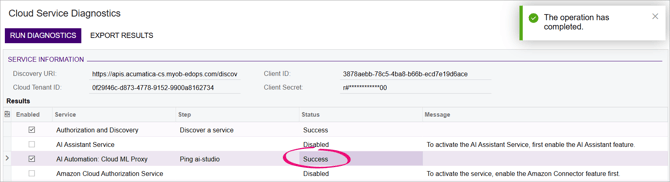
- If the Status column shows Failure, contact your MYOB partner, Customer Success manager or MYOB support. You can't continue setting up AI Automation until the status is Success.
- If the Status column shows Success and the Step column shows Ping ai-studio, you're ready to set up your LLM connection.
2. Set up the LLM connection
The LLM connection is the bridge between Acumatica and the MYOB-managed AI model.
- Go to the LLM Connections form (ML201000).
- On the form toolbar, click the New Record plus icon (+).
- Next to the LLM Provider field, click Refresh to load the latest providers.
- Complete the fields with these values that match the pre-built example prompts included with AI Automation:
- Connection ID – Enter MYOB-MANAGED.
- Connection Name – Enter MYOB Managed AWS.
- LLM Provider – Select cloud.myob-managed. This is the MYOB-managed AWS Bedrock connection. For this provider, you do not need to provide API keys or configure a model.
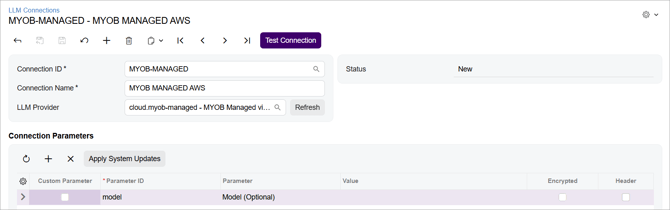
- On the form toolbar, click Test Connection. After a successful test, the Status changes to Active.
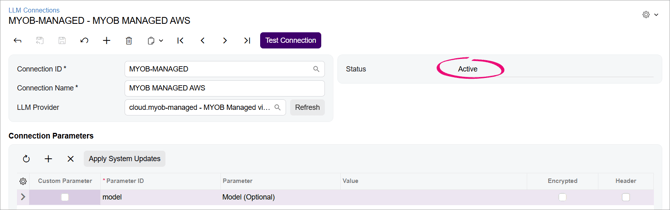
- Save your changes. You are ready to link your LLM connection to the pre-built prompts.
3. Connect your LLM to the pre-built prompts
AI Automation includes example prompts to get you started. You need to link your LLM connection to these prompts and activate them before you can use them.
For more example prompts and how to create them, see AI Studio prompts. For information about the different fields on the LLM Prompts form, see the form reference.
- Go to the LLM Prompts form (ML202000).
- Open a pre-built prompt, e.g. REFINE-REPLY.
- Set the LLM Connection to the MYOB Managed connection you created in the previous procedure.
- Select the Active checkbox. This adds the prompt action to the form selected in the Source Form field.
- Save your changes.
- Repeat steps 2 to 5 for each pre-built prompt you want to activate.