
Avoid sign-in hassles and getting locked out if you can't get codes via your usual 2FA method. When you set up more than one 2FA method, you'll give yourself options for receiving verification codes.
For example, you could set up SMS 2FA on your phone and the 2FA authenticator app on a tablet. Then, if you don't have your phone handy and can't receive SMS, you can still get your 2FA code using the authenticator app on the tablet.
Manage 2FA in My Account
The Account security page in the My Account portal (myaccount.myob.com/account/security) lets you manage 2FA methods, passkeys and your account's email address.
When signing in to My Account, use the same email address, password and 2FA you use to sign in to Acumatica with the purple Sign in with MYOB ID button.
For MYOB Acumatica customers, the other areas of My Account aren't available. If you get lost, click the menu at the top-right and choose Account security.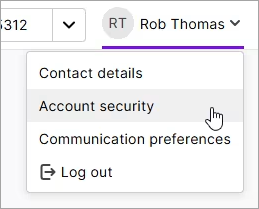
Set up an additional 2FA method
- Sign in to the Account security screen in My Account.
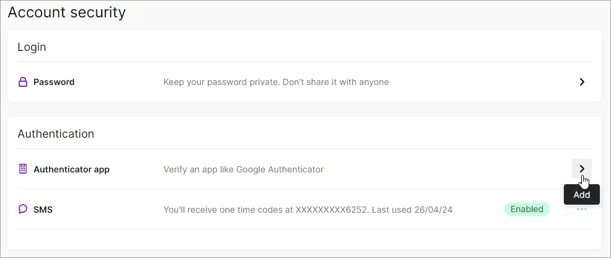
- In the Authentication section, click the Add (>) button next to the 2FA method you want to use. For the Authenticator app option, you'll need to install an app such as Google Authenticator onto your mobile device.
-
Follow the prompts to set up the 2FA method.
After setting up, you're taken back to the Account security page.
Sign in with another 2FA method
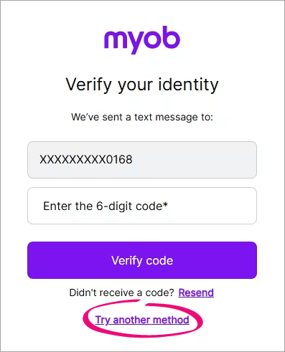
Once you've set up additional 2FA methods, if you can't use your regular 2FA method, click Try another method and choose the method.
Remove a 2FA method
You need at least one 2FA method, so you can only remove an additional 2FA method that you've set up.
If you remove email as a 2FA method, you can't add it back
Email 2FA is our least-secure option and we’re phasing it out.
- Sign in to the Account security screen in My Account.
- In the Authentication section, click the ellipsis button (...) for a 2FA method and choose Remove.
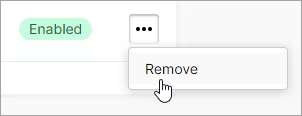
- When asked to confirm, click Remove again.
Reset a 2FA method
If you have more than one 2FA method enabled, you can reset the authenticator app or SMS 2FA method. Doing this is like removing that 2FA method then setting it up again.
You might need to reset a 2FA method to:
- change the phone number your SMS 2FA codes are sent to
- re-link your authenticator app to MYOB
- change authenticator apps
- set up an authenticator app on a new phone.
- Sign in to the Account security screen in My Account.
- Click the ellipsis (...) button for Authenticator app or SMS and choose Reset.
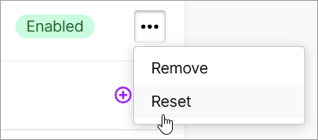
- When asked to confirm, click Reset again.
- Choose one of your other methods to receive a 2FA code to verify your identity.
-
Follow the prompts to set up authenticator app or SMS 2FA again.