
You can manage your passkeys in the My Account portal. For MYOB Acumatica customers, My Account is only used for managing your 2FA security settings.
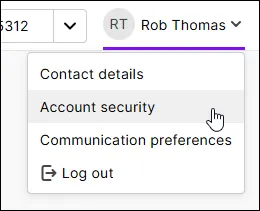
If you get lost, open the menu at the top-right and click Account security.
For information about the benefits of passkeys, see Passkeys – Secure sign-in without a password.
What you need to set up passkeys
- An MYOB ID account that is associated with your MYOB Acumatica account. MYOB ID is the default way of using two-factor authentication (2FA) in MYOB Acumatica. Learn more.
- A passkey‑compatible browser and device on an operating system that supports passkeys. Otherwise, you won't see the option to sign in with a passkey.
- iOS/iPadOS: Version 17 or later for passkeys in Microsoft Authenticator.
- Android: Android 9 or later, with Android 14 or later recommended for enhanced features. Requires Credential Manager and Play Services.
- Windows: Windows 11 (22H2) or later is recommended for better passkey integration and synchronisation.
- Browsers: Latest version of Chrome, Safari, Edge, or Firefox that support WebAuthn are required.
- Hardware Keys: FIDO2-compliant hardware security keys (for example, YubiKey) are supported.
Add passkeys
To add your first passkey:
- Sign in to the Account security screen in My Account. Use the same email address, password and 2FA you use to sign in to Acumatica with the purple Sign in with MYOB ID button.
- If prompted, enter a 2FA code using your existing 2FA method.
- In the Sign in > Passkey section, click Add.
- If prompted, complete a 2FA check.
- Click Add passkey.
- Choose where to save your passkey (for example, your device, browser or password manager), then follow the prompts to add the passkey.
The new passkey is listed in the Sign in > Passkey section. You also receive an email confirming you’ve set up a passkey.
To add more passkeys, click Manage in the Passkey section of the Account security screen. Then, click Add passkey.
Sign in with a passkey
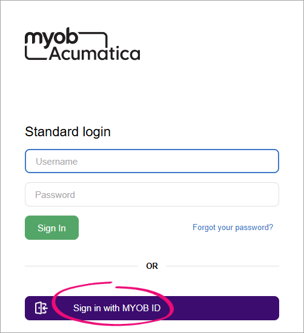
On the MYOB Acumatica sign-in screen, click Sign in with MYOB ID.
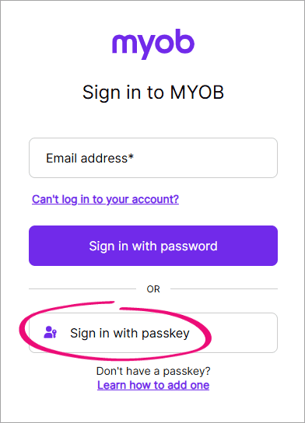
Then, on the MYOB ID sign-in screen, click sign-in with a passkey and follow the prompts.
Remove a passkey
- Sign into the Account security screen in My Account. Use the same email address, password and 2FA you use to sign in to Acumatica with the purple Sign in with MYOB ID button.
- If prompted, complete a 2FA check.
- In the Sign in section:
- (If you have only one passkey) Click Remove next to the passkey
- (If you have multiple passkeys) Click Manage, then click Remove next to the passkey you want to remove.
- In the message that appears, click Remove passkey.
- If prompted, complete a 2FA check.
The Account security page is updated with your passkey removal (if you no longer have any passkeys, the Manage button changes to Add passkey). You'll also be sent an email confirming that the passkey has been removed. - After removing the passkey in My Account, you must also remove it from your device or password manager. This avoids sign-in hassles caused by inactive passkeys.