
Managing the amount of storage your MYOB Acumatica site uses can help keep it running as fast as possible. In addition, once you go over the 100 GB of storage included with your site you will be charged for any extra space you use.
This page is designed to help you understand and manage storage on your MYOB Acumatica site.
Your MYOB Acumatica site storage can be affected by a few different factors:
- The size of the database. This is made up of all your records including stuff like sales and bills, customer and supplier records, product lists, and audit tracking entries.
- Your attached files. These are the images you attach to MYOB Acumatica documents, such as images of inventory items, pdf copies of supplier invoices, scans of expense receipts, etc.
- The number of tenants and snapshots you use. Each tenant and snapshot duplicates all or part of your database and can also duplicate file attachments.
While it varies depending on how you use MYOB Acumatica, both the database and file attachments typically use significant amounts of storage.
If you're still having issues with storage after working through these resources, contact your MYOB customer success manager or business partner to talk about your options.
Checking how much storage you’re using
To check how much storage you’re using, and what your storage limit is, go to the Licence Maintenance screen (SM201510) and open the Entitlements tab.

The Storage Space entry shows your storage limit, your usage, and how much you have available.
We’re working on tools to help you understand your storage usage in more detail.
Managing file attachments
Deleting file attachments can help free up storage, especially in situations where you know you have specific attachments or file types that are taking up a lot of space. There is no way to delete attachments in bulk, so this is most useful when you know exactly what you want to delete.
To help prevent file attachments taking up too much storage in the future, you can also set limits on the size of files allowed as attachments, by type.
To delete file attachments
- Go to the Search in Files screen (SM202520).
- Filter the list of files to help find ones you’re looking for.

- Select Show Unassigned Files to see files that are not linked to any documents.
- Enter a file extension into the File Name Contains field to look for file types that may be larger (e.g. video or audio files).
- Use Added From and To to look for older files you may no longer need.
- To see the size of the file and other information, click the filename to open the File Maintenance screen.
- Select the file you want to delete and click Delete File.

Only one file can be deleted at a time. Multiselecting rows of records will still only delete the one highlighted file.
To set file size and type limits
If users are uploading unnecessarily large files, or file types that aren’t required on your site, consider setting up some limits on the File Upload Preferences screen. For example, you may want to set a limit of 500KB if you only expect users to be attaching images to files, or you may want to stop users from uploading larger types of files, such as movies.
- Go to File Upload Preferences (SM202550).
The table shows the file types that are allowed to be uploaded as attachments. - To remove a file type as a valid upload option, select the row and click Delete Row.

Only remove file types that you know are causing an issue and will not cause problems with any of - To limit the size of files that can be attached, enter a Maximum File Upload Size in KB.

The default limit of 25,000 KB (25 MB) is bigger than most image files. - Click Save once you’re happy with your changes.
Managing your database size
Much of your database is taken up by the usual documents and entries created in your day-to-day use of Acumatica. Some of these documents can be archived, however they’re not deleted from your database, just excluded from search results — see Archiving Old Documents for more info.
Another big chunk is taken up by audit history. There are two types of audit records kept in MYOB Acumatica — field-level auditing of specific fields on specific screens and system-wide security auditing of logins, session lengths and other basic user usage info.
Some types of audit history can be deleted from your database, and you have some control over how many screens and actions get tracked. The more tracking you need, the bigger these audit records can get. Audit tracking requirements vary massively depending on your industry and your company’s specific needs, but reviewing your audit requirements can help keep your database size down in the long run.
Finally, if you schedule a lot of automated tasks, your automation schedule history can take up a lot of space. Consider reviewing how many executions you keep in the history to reduce the amount of space they take up.
To review field-level auditing settings
Field level auditing is set up on a screen-by-screen basis to record changes to specific fields. The records can't be deleted, so try to only audit fields that you really need to track.
- Go to the Audit screen (SM2055PL).
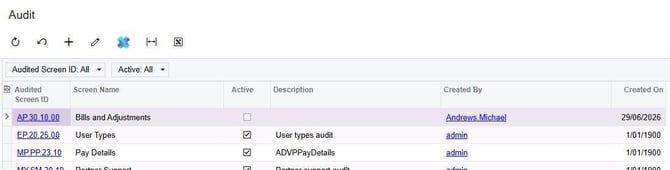
The table shows all the screens that have audit tracking enabled. Many of these audits are set up as standard and cannot be deleted or edited for compliance reasons. - To review the auditing on a screen, click the Audited Screen ID.

- Check the tables and fields that are audited and consider unticking any that aren’t required.
The more fields that are audited, the larger the audit records will be.
To review system-wide security auditing settings
Be careful when updating your system-wide audit settings, as there are likely to be minimum requirements for compliance.
- Go to Security Preferences (SM201060).
The Audit section is in the bottom-right hand corner.
- Enter an Audit History Retention Period in months. The default is 99, and there is a minimum of 12.
- Review the selected items that are being audited, and untick any that you don’t need.
To delete system-wide security audit history
You can bulk delete system-wide security audit history records older than the retention period specified above. Be very careful, as these records can’t be restored.
- Go to Access History (SM201045).
- To delete old access history records, click Delete History.

- Click Okay on the confirmation pop-up to continue.
To review automation schedule history retention
Automation schedules keep a log of executions in history. You can choose how many are kept for each automation, or to keep all the history.
- Go to Automation Schedules (SM205020).
- Select a schedule using the Schedule ID field.
- On the Details tab, review your history settings.

- Only select Keep Full History if you always need to be able to review the automation execution log forever.
- Enter a number of Executions to Keep in History that makes sense depending on the automation and your business needs.
E.g. for a daily automation that you want six months of history on, enter around 180.
- Click Save, then keep checking other automations.
Managing tenants and snapshots
Keeping unneeded tenants and snapshots can take up a lot of extra space. Work with your MYOB Acumatica partner or MYOB consultant to determine how many tenants you need and make sure they’re being created in a way that minimises storage use.
For more information, see Managing tenants and snapshots.