
A sandbox is a copy of a live MYOB Acumatica site. When a new major version of MYOB Acumatica is released, we'll provide you with a sandbox for testing your day-to-day processes before upgrading your live site.
Before letting your staff access a sandbox for testing, ensure that you have reviewed and completed all steps outlined on this page.
1. Access the sandbox with your normal sign-in credentials
Because the sandbox is an exact copy of your production environment, all user accounts are identical across both sites. Sign in to the sandbox using the same credentials you use for the live system.
If you use two-factor authentication (2FA) but the Sign in with MYOB ID button is missing, raise a ticket in the Customer Support Portal.
For general information about the different sign-in options, see Understanding sign-in options.
2. Republish customisations to ensure they're compatible with the new version
You need to republish all customisations to ensure they are active before you or your staff test any transactions. Customisations form an essential part of your system’s functionality and workflows, so it’s important to verify that each one is successfully published.
Third-party vendor customisations are not managed by MYOB.
You need to log with the vendor directly.
-
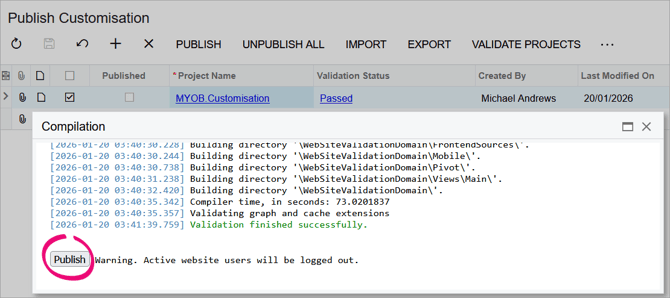
Go to the Publish Customisations form (SM204505).
- In the checkbox column on the left, select the columns to republish. If you're not sure which to select, check which ones have been published in your live site.
- On the toolbar, click Publish. The Compilation window opens, which tells you how publishing is progressing.
- If publishing validation finishes:
- Successfully, click Publish. You can go ahead with your transaction testing.
- With a failure or an error, raise a ticket in the Customer Support Portal and select Something not working as expected. The error likely occurs because the customisation is not compatible with the new version of MYOB Acumatica.
- Successfully, click Publish. You can go ahead with your transaction testing.
3. (Australian payroll only) Disable Single Touch Payroll
Do not send test data to the ATO
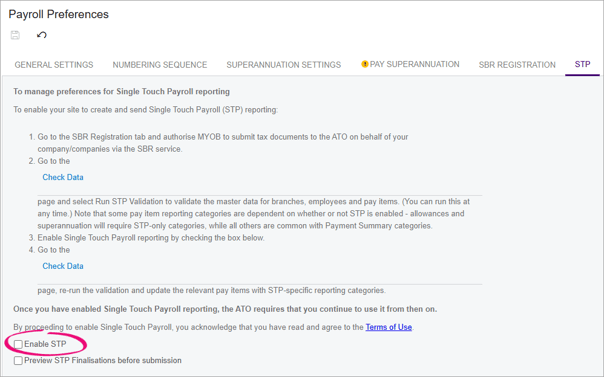
By default, STP is enabled in the sandbox. You must disable it so that you can test pay runs without submitting data to the ATO.
- Go to Payroll Preferences form (MPPP1100).
- On the STP tab, deselect the Enable STP checkbox.
- Save your changes.
4. If your company's logo isn't showing, reupload it
When a sandbox site is created, all data from the production site is copied across except for file attachments. As a result, items such as your site logo may not display correctly or may generate errors on printed forms.
To fix this, you will need to remove the outdated file references and upload new copies.
-
Go to the Search in Files form (SM202520).
-
In the main table, select the logo file and click the Delete File.
-
Go to the Companies form (CS101500).
-
On the Visual Appearance tab, upload a new logo file.
5. Change the colour scheme so it's different to your live site
To help your staff know when they're in the sandbox, we recommend changing the colour-scheme of the company in the sandbox.
-
Go to the Companies form (CS101500).
-
On the Visual Appearance tab, select the Override Colors for the Selected Company checkbox.
-
Change the colour in the Primary Color field.
6. If you use GL Consolidation, update the URL setting
If you are using the GL Consolidation module, then it’s important to update the settings for the sandbox site. This is because the Consolidation Settings are still pointing to the production URL.
-
Go to the Consolidation screen (GL103000).
-
In the URL column, override your live site's URL with the sandbox URL.
-
Save your changes.
-
On the toolbar, click Synchronise to test the connection.
-
If you receive an error for invalid credentials, check the above topic on user access changes.
7. Share the sandbox with your staff
After you've completed the steps on this page, you're ready to share the sandbox with your staff for testing.
You should also share the following information with them about how sandboxes work.
- Sign in to the sandbox with your usual login details. If you use two-factor authentication (2FA) but the Sign in with MYOB ID button is missing, raise a ticket in the Customer Support Portal.
- Sandboxes generally run slower than production environments because they are hosted on lower‑spec servers. However, you should still be able to navigate the system and complete basic testing without issues. If you experience any significant performance problems, contact our support team.
- The sandbox is not connected to your production site. The sandbox is simply a copy. All test transactions will remain within the sandbox and will not affect live data.
- Sandbox data may be slightly outdated, depending on when the copy was taken from your production system. This should not impact your testing, as the purpose is to validate workflows and system functionality, not to confirm data accuracy.
- Email processing is disabled in the sandbox, so no emails will be sent from this environment. You can still preview and print forms and reports, but you can't email them.
- Automation Schedules are disabled by default, but they can be re‑enabled if required. We recommend leaving them disabled to avoid unintended outcomes, such as accidental email or notification triggers.
- Test all customisations thoroughly. Even if they publish successfully, they may not behave as expected in the upgraded version.
- Test any integrations you have with third-party vendors. Consult your vendor for guidance on the best approach to perform this testing.