
We've introduced multi-company Pay Super, so all companies in a single tenant take advantage of MYOB's free superannuation clearing house service. Learn about what's changed in the release notes for 2025.2.3 and 2026.1.1. The 2025.2.4 hotfix release does not include multi-company Pay Super features.
This page describes how to get started, both before and after upgrading to a version that supports multi-company Pay Super.
Before upgrading, deal with open batches
We recommend that you finalise, void or delete any in-progress superannuation batches. This means you won't have to clean up your data after upgrading.
If you've already upgraded and some batches aren't assigned to a company, see our knowledge base article on fixing the batches.
- SAFF batches with a status of Created, Submitted or Approved – Delete the batch on the Superannuation Batch Summary form (MPPP4051). SAFF batches cannot be voided.
- Pay Super batches with a status of:
- Created through to Partially Authorised – Delete the batch on the Superannuation Batch Summary form.
- Withdrawal Failed, Payment Failed, Reversal Required or Reversal Completed – Void the batch on the Superannuation Batch Details form (MPPP5006).
- Authorised or later – Complete these batches after upgrading, as they cannot be deleted.
After upgrading, review your superannuation payment setup
Because of the new features introduced to support multi-company Pay Super, all sites must review their superannuation payment setup – even if you only use Pay Super for a single company or if you use the SAFF method.
- Go to the Payroll Preferences form.
- On the Pay Superannuation tab, click Sync Company Preferences.
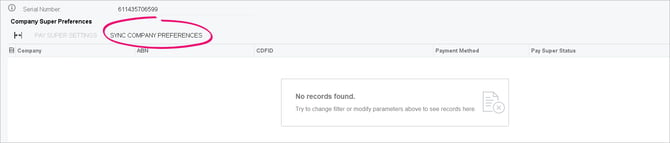
This fills in the table with the superannuation payment settings for all your companies. - Review the table and make sure the payment method for each company is correct. If you want to use Pay Super for multiple companies, see the next section. If you're not switching from the SAFF method, you're ready to process superannuation payments as usual.
Registering multiple companies for Pay Super
1. Apply for Pay Super accounts
Each company you want to switch to Pay Super must have a Pay Super account. For instructions on how to apply, see Get started with MYOB's Pay Super service.
As part of applying, you'll need to provide MYOB support with a serial number and a CDFID. You can find these on the Pay Superannuation tab of the Payroll Preferences form.
Although the serial number is the same for all your companies, most companies have a unique CDFID. If you have two companies with the same CDFID, we recommend creating a support request to make the CDFIDs unique.
2. Register new companies with Pay Super
To switch a company from SAFF to Pay Super for the first time, you need to register the company. Get started by going to the Pay Superannuation tab of the Payroll Preferences form. Set the company's Payment Method to Pay Super and then click Register. Follow the prompts in the Pay Super portal to complete your registration.
If registering multiple companies, reload after each registration
After a company's Pay Super status becomes Active, reload the form before registering the next company. This prevents an issue with Pay Super accounts being associated with the wrong company. We will fix this issue in version 2026.1.2.
3. Register previously saved self-managed super funds (SMSFs)
After registering your companies with Pay Super, you also need to re-register any SMSFs you previously used with SAFF. This ensures that the Pay Super service can send payments to the SMSFs without errors.
If you need to add new SMSFs as well, you can also do this now.
- Sign in to an MYOB Acumatica company that has switched from SAFF to Pay Super.
- Go to the Superannuation Funds form (MPPP2152).
- Set the Fund Type to Self Managed Funds.
- On the form toolbar, click the Add New Super Fund plus icon
 .
. - Enter the SMSF's details.
- Save your changes.
- On the form toolbar, click Register Funds.
- Log in to Pay Super to finalise the registration.
- If you have switched multiple companies from SAFF to Pay Super, repeat steps 1–8 for each company.
Adding one SMSF to multiple companies
You have to manually add the fund to each company. To allow for the duplicate records, each fund should be assigned a different Cash Account.
4. Test your new Pay Super setup
After registering your companies and self-managed super funds, you should create a test superannuation batch before processing a real batch for employees.
For detailed instructions, see Processing Superannuation Payments.