
Before getting started
Make sure you've prepared your site and planned your transition.
We recommend a two-step approach to switching on Modern UI:
- Create a test tenant and use it to test Modern UI with a small group of people who are familiar with your business processes. For instructions on creating a test tenant, see To Add a New Tenant by Using the Web Interface.
-
Once you're happy with how Modern UI works in the test tenant, switch your live tenant one screen at a time. We recommend that you start by switching on non-customised, low-risk screens (enquiry screens, simple masters, simple transaction screens), before switching customised screens.
The steps for switching on Modern UI are the same in both your test tenant and your live tenant.
Switching on Modern UI
After creating your test tenant, we recommend switching on screens one at a time. That way, you can more easily test your day-to-day workflows and check for any issues, e.g. with customisations.
You can start testing non-customised screens immediately while your customisations are being updated. If you haven't spoken to anyone about updating your customisations, contact your MYOB Acumatica partner or customer success manager as soon as possible – it's the part of transitioning that takes the longest.
For instructions, see Switching a Form Between the Modern UI and the Classic UI.
Adding user-defined fields
After switching on Modern UI for a screen, you can add your user-defined fields to it. For instructions, see Managing User-Defined Fields.
Converting dashboards
Switching a screen to Modern UI does not automatically convert your dashboards. Instead, there are two screens that let you do it.
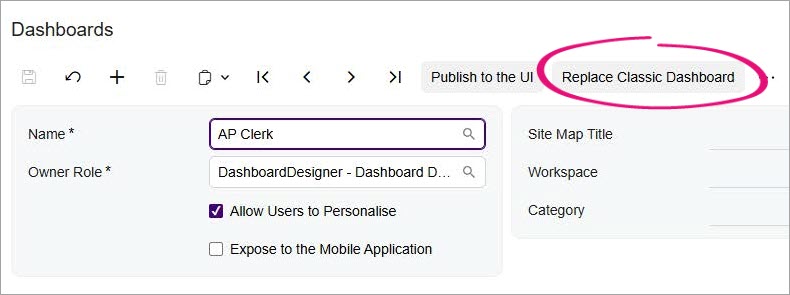
- For standard dashboards, where you're happy to take the default Modern UI version, use the Dashboards screen (SM208610). In the Name field, select a standard dashboard and click Replace Classic Dashboard.
- For customised dashboards, use the Classic Dashboards screen (SM208600). This converts from the Widgets tab in Dashboard Properties, not what it's visible on screen. Hidden widgets can appear unexpectedly after converting. Click Design and then click Switch to Modern UI.
