
This page explains how to create a new pay item and use it as a one-off fix for employee wage rates. There will be two hourly rates associated with the employee's pay – one at the old rate and one at the new rate.
1. Create a new wage rate pay item
- Go to the Pay Items form.
- In the summary area:
- Enter an easily identifiable Description, e.g. New Hourly Rate.
- Set the Type to INCOME - Income.
- Set the Taxation to Taxable : Standard PAYE.
- On the Calculation Method Tab:
- Set the Method to Rated.
- Select Use Custom Rate and enter the new higher rate.
- On the Additional Information tab, select any options specific to your company.
2. Add the new pay item to employee standard pays
- Go to the Pay Details form.
- Select an impacted employee.
- On the Standard Pay tab, add the new wage rate pay item you created.
- Save your changes. The new rate automatically based on the settings of the pay item.
- Repeat steps 2–4 for each impacted employee.
3. Process the pay run
- Go to the Manage Pays form.
- Open the impacted pay run.
- On the Pay Run Details form, open an impacted employee's pay.
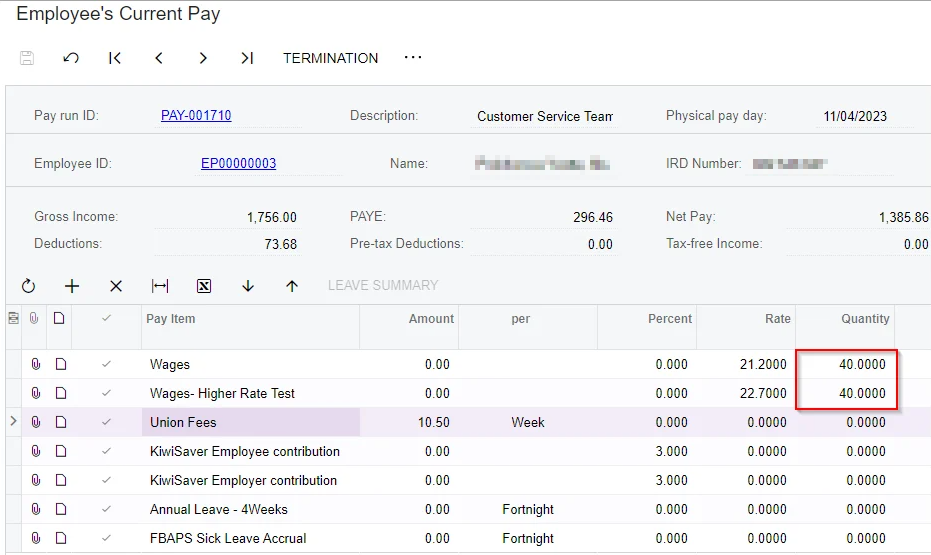
- On the Employee's Current Pay form:
- Override the employee's ordinary wages line to display what was worked in the first half of the pay period.
- Manually add the amount to be paid for the second half of the pay period.
- Save your changes.
- Repeat step 3 and 4 for each impacted employee.
- After overriding rates for all impacted employees, process the pay run as normal.
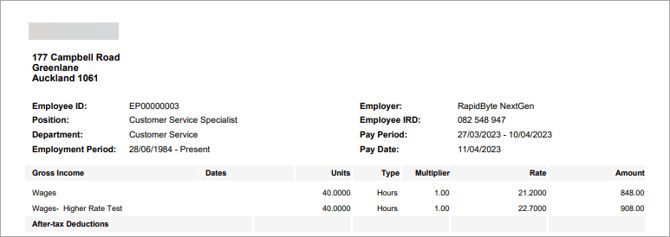
The screenshot below shows an example of how the pay item might look on a payslip. Your employees' payslips might look different, depending on your pay item settings.
4. Ensure employee rates are correct going forward
After processing the pay run, follow the end of tax year procedures for Australia or New Zealand to update employee rates. This ensures that rates are correct going forward.
Also remove the new wage rate pay item from employee standard pays, to exclude it from future pays.