
Before you can transition to Modern UI, you need to review your site version, customisations and dashboards. This will help give you an idea of how long the transition will take.
Getting ready to transition
Check your site is on version 2025.2 or later
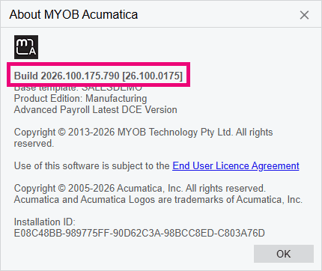
Modern UI is only available for versions 2025.2 onwards. Check your site version by clicking Tools in the top right of MYOB Acumatica and choosing About. The Build number tells you the version of your site.
Check how many customisations your site has
The more customisations you have, the longer it will take to transition to Modern UI. This is because a developer needs to update your customisations. While developers rework your customisations, you'll still be able test and switch non-customised screens and dashboards.
Get in touch with your MYOB Acumatica partner or customer success manager as soon as possible to start updating your customisations. They can also help you identify what is customised in your site, if you're not sure.
Custom logic is not affected
Although Modern UI will not display any custom user interface elements (e.g. fields, tables, buttons, screens), Modern UI does not affect the custom logic that determines how those elements work.
Back up customised Classic UI dashboards
Switching to Modern UI does not automatically convert your dashboards. Although a tool is available to help you convert dashboards, they might not be converted correctly, depending on their complexity.
So, if you have customised dashboards, back them up in case issues occur when converting them to Modern UI. You can back them up from the Classic Dashboards form (SM208600) by exporting them as XML files.
How long the transition takes
The transition duration depends on how many customisations you have.
| If your site has | Recommended testing approach | Duration |
|
No customisations 0–2 standard dashboards |
Quick check in a test tenant with a small group of users, then switch on Modern UI for your whole live tenant. | 1–4 weeks |
|
1–10 customised screens A handful of custom dashboards |
Check in a test tenant with a group of users. Rebuild and test each customisation. Then switch on one screen at a time in your actual tenant. | 1–2 months |
|
More than 10 customised screens, or complex ones (dialogs, custom buttons, key transactions) Many custom dashboards |
Treat as a formal project. Staged customisation rebuilds, test tenant, pilot program, long phased rollout with a buffer before version 2026.2. Start now. | Several months |
Switching on Modern UI
Once you have a transition plan, you're ready to start switching on Modern UI for your site.
We recommend starting by testing Modern UI in a test tenant. For instructions on creating a test tenant, see To Add a New Tenant by Using the Web Interface.